


Ever wish you had more hours in your day? Here’s a productivity secret: mastering keyboard shortcuts could be the solution!
When you reach for your mouse to copy text or open a tab, you’re losing precious microseconds that quickly add up.
Turns out, it can add up to 64 hours a year.
But there’s a trick to redeem that time: keyboard shortcuts.
These small keystroke combos here and there can help you stay focused by keeping your hands on the keyboard and your eyes on the screen.
Whether you’re a student, a professional, or just someone who wants to stop wasting time, this guide has 30+ shortcuts that could get daily tasks done more efficiently!
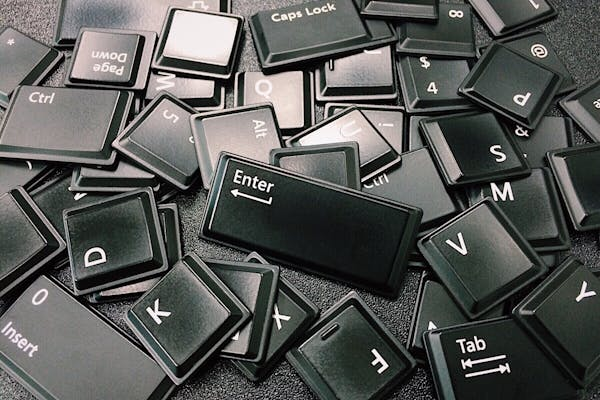
Source: Pexels
Working on Multiple Windows? How To Switch Between Windows
If you have multiple windows to work on, these keyboard shortcuts would be of great help!
For example, you might constantly have a few applications you toggle with, like a web browser, WhatsApp, Microsoft Excel and Spotify.
Using these shortcuts could help you to better manage navigating Windows without using your mouse!
| Shortcut | Function |
| Windows + Tab | Shows active windows and stored history; allows creation of a new virtual desktop |
| ALT + TAB | Switches between open applications |
| Windows + Arrow Keys | Splits screen, maximises, or minimises windows |
| Windows + L | Locks your PC |
A Closer Look at Task Manager
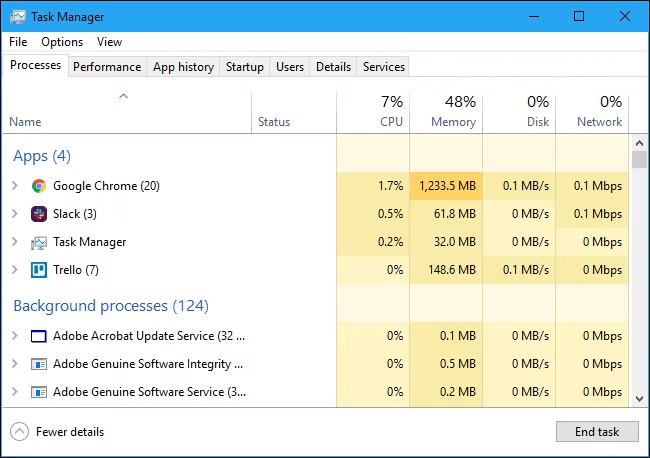
Source: https://www.howtogeek.com/405806/windows-task-manager-the-complete-guide/
If you wish to manage the system you are running, these keyboard shortcuts would help you out!
For example, looking at a task manager would help you to swiftly find resource-hungry processes, troubleshoot performance issues, and end unresponsive programs.
| Shortcut | Function |
| ALT + F4 | Brings up the shutdown/restart menu |
| CTRL + SHIFT + ESC | Opens Task Manager |
| CTRL + ALT + DELETE | Opens security options (Task Manager, lock, etc.); navigable with arrow keys and Enter |
How To Project Onto Another Screen

Source: Pexels
If you think you need a mouse to navigate the different elements, think again!
Using these keyboard shortcuts would assist you without a click of a mouse.
In addition, if you have an extra monitor or projecting your computer onto a screen, you can use this shortcut to move your current window to the other monitor~
| Shortcut | Function |
| Windows + SHIFT + Arrow | Moves active window to another monitor |
| TAB, Arrow Keys, ENTER | Navigates UI elements without a mouse |
How To Use Clipboard Or Screenshot
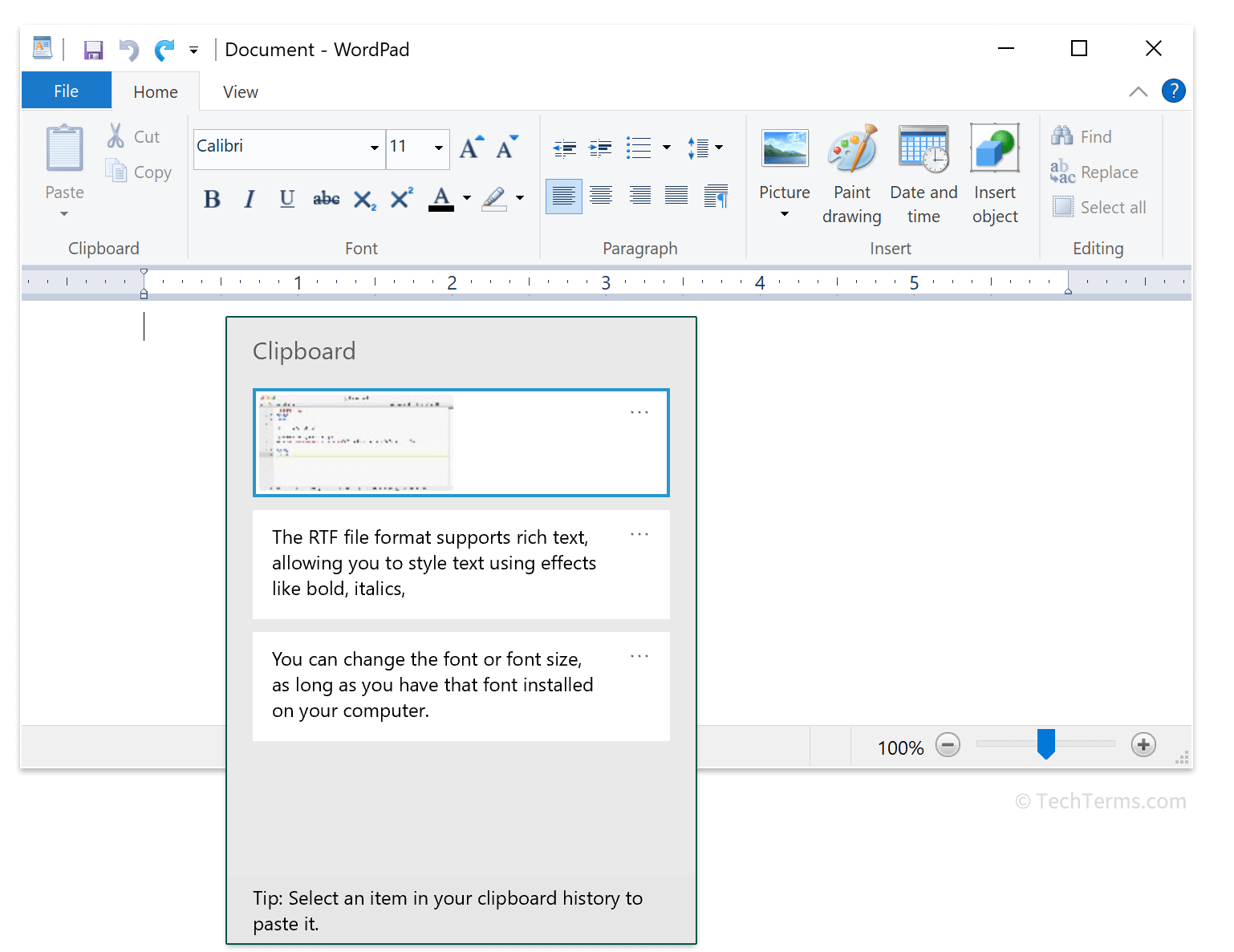
Source: techterms
You might have to use screenshots a lot in your daily tasks.
It could be for you to keep important information, or to simply share it with someone so that they know what you see on your screen.
In addition, you might also have to copy and paste many times in your line of work.
Think of how you might be managing a boatload of data, having to transfer it from one place to another.
The clipboard function would help you to save previous information you have copied, such that you don’t have to only paste the latest thing you have copied.
Here are some keyboard shortcuts for screenshots and clipboards.
| Shortcut | Function |
| Windows + SHIFT + S | Opens Snipping Tool for custom screenshots |
| PRT SCR | Screenshots the entire desktop |
| ALT + PRT SCR | Screenshots the active window |
| Windows + V | Opens clipboard history |
Copy, Paste, and Edit Without A Mouse!
Following from the previous section on clipboard, here are some keyboard shortcuts that would help you with copying and pasting!
These are the bread and butter of keyboard shortcuts, since we find ourselves using them the most.
| Shortcut | Function |
| CTRL + Z | Undo |
| CTRL + Y | Redo (in Office and some apps) |
| CTRL + C | Copy |
| CTRL + X | Cut |
| CTRL + V | Paste |
How To Enhance The YouTube Watching Experience

Source: Pexels
YouTube is the most popular video platform in the world!
Whether young or old, people go on YouTube to watch videos.
Here are some shortcuts you can use when watching videos, without having to manually use your mouse!
| Shortcut | Function |
| J | Rewind 10 seconds |
| K | Pause/play |
| L | Fast forward 10 seconds |
| , (comma) | Move 1 frame backwards |
| . (period) | Move 1 frame forward |
How to Manage Many Tabs?
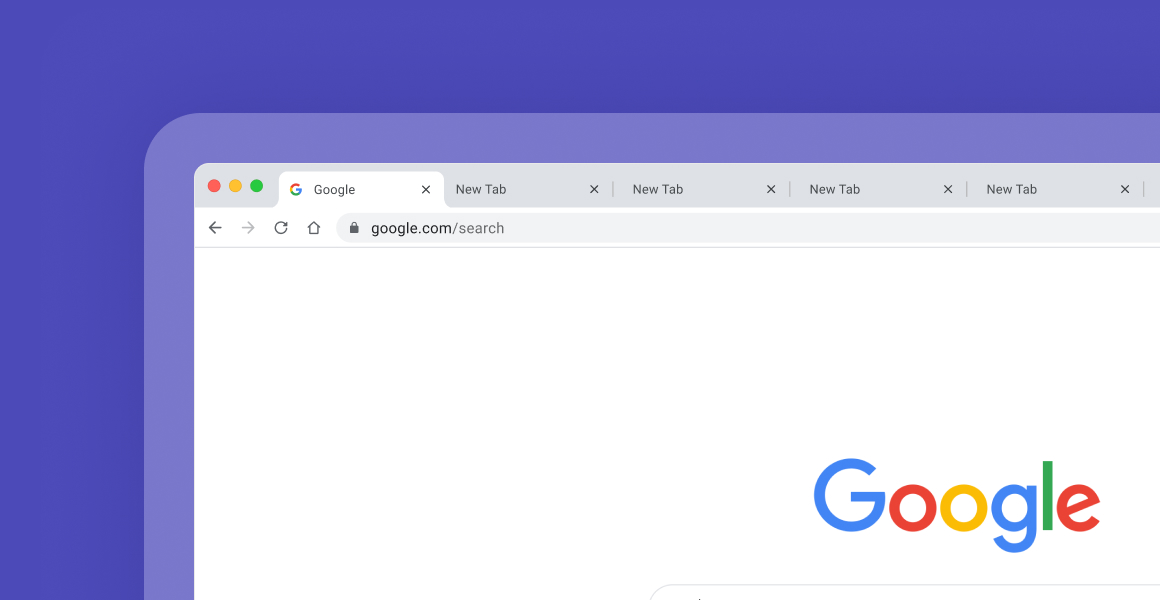
Source: https://shift.com/blog/tips-tricks/the-best-browsers-for-multiple-tabs/
As someone who has more than 10 tabs open at the same time, these keyboard shortcuts are a lifesaver!
Here are some shortcuts to mastering browser productivity for tasks like opening, closing, switching, and reopening!
| Shortcut | Function |
| CTRL + T | Open a new tab |
| CTRL + N | Open a new browser window |
| CTRL + W | Close the current tab |
| CTRL + TAB | Switch to the next tab |
| CTRL + SHIFT + TAB | Switch to the previous tab |
| CTRL + SHIFT + T | Reopen the last closed tab |
| CTRL + L / ALT + D / F6 | Jump to the address bar (search bar at the top) |
| CTRL + K / CTRL + E | Moves the cursor to the browser’s built-in search box |
| F5 | Refresh the current page |
| CTRL + D | Bookmark the current site |
| CTRL + + / – | Zoom in or out on the page |
| CTRL + 0 | Reset zoom to default |
| CTRL + SHIFT + O | Open bookmarks manager |
| CTRL + P | Print the current page |
| CTRL + S | Save the current page |
| CTRL + SHIFT + L | Search the web for clipboard contents (some browsers) |
Related To Keyboard Shortcuts:
Top 5 Affordable Laptops For University Students In Singapore That Can Handle Multiple Tabs
Reasons Why Your Laptop Plays Random Music On Its Own And How To Solve Them